Showing posts with label Computer Tricks. Show all posts

How To Enable Quick Search in Folders on Windows Vista

Windows Vista has a new feature that lets you quickly search in a folder by just starting to type, which will focus the search box. This comes in handy when searching a large folder.
To turn this on, click the Organize button in any folder, and select Folder and Search Options from the menu.
How To Enable Quick Search in Folders on Windows Vista
in the Folder Options screen, click the View tab, and scroll the Advanced settings box down to the bottom. You should see “Automatically type into the Search Box”
How To Enable Quick Search in Folders on Windows Vista
Click OK, and you should be able to search in the current folder by just starting to type. I typed in calc.exe while I was in the Windows \ system32 folder, and instantly came up with the right file.
How To Enable Quick Search in Folders on Windows Vista
Click OK, and you should be able to search in the current folder by just starting to type. I typed in calc.exe while I was in the Windows \ system32 folder, and instantly came up with the right file.

How To Add Home Directory Icon To The Desktop in Windows 7 or Vista

One of the new changes in Windows 7 and Vista is that each user has a “Home” directory that is actually accessible and meant to be used. In XP and 2k, you had a hidden home directory that you weren’t meant to muck around in.
Some of the new features, like the Downloads directory, are only accessible through your Home directory, which is why it makes sense to put an icon for it right on the desktop.
To do this, click the Start button, and then right click on your User name. Choose the Show on Desktop option:
How To Add Home Directory Icon To The Desktop in Windows 7 or Vista
Now your home directory icon should show up on your desktop:
How To Add Home Directory Icon To The Desktop in Windows 7 or Vista
Alternate Method
You can also right-click on the desktop, choose Personalize from the menu, and then Desktop Icons on the left-hand pane.
How To Add Home Directory Icon To The Desktop in Windows 7 or Vista
From this screen, you can simply check the box for user’s files to add the icon to the desktop.

How To Display My Computer Icon on the Desktop in Windows 7 or Vista

I don’t know about you, but I really preferred having the My Computer icon right on the desktop. Seems like modern versions of windows don’t have it by default anymore. There are two different ways you can add the icon back.
Easy Method
To put the Computer icon on the desktop, click the Start button, and then right-click on “Computer”.
How To Display My Computer Icon on the Desktop in Windows 7 or Vista
Click the “Show on Desktop” item in the menu, and your Computer icon will show up on the desktop:
Nearly as Easy Method
Right-click on the desktop and choose Personalize, then click on “Change Desktop Icons” on the left-hand side of the screen.
How To Display My Computer Icon on the Desktop in Windows 7 or Vista
In the Desktop Icons panel you can choose which of the built-in icons to show on the desktop:
How To Display My Computer Icon on the Desktop in Windows 7 or Vista
One of the most common requests is how to add the Recycle bin back… which you can also do from the above panel

How To Display Google Calendar in Windows Calendar

Windows Vista includes a built-in calendar application that’s pretty slick, but as an addict to Google Calendar, I’d like to just view my Google calendar in a desktop client. This is where Vista’s “Subscribe” to calendar feature works out pretty well.
To subscribe to your Google Calendar, you’ll first need to get the iCal link to your calendar. In Google Calendar, go to Settings \ Calendars and then click on your calendar in the list.
You should see a “Private Address” section:
How To Display Google Calendar in Windows Calendar
Right click on the ICAL link, and choose Copy Shortcut to copy the link to the clipboard.
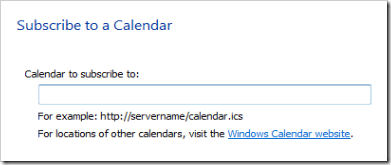
Now open Windows Calendar, and click the Subscribe buttton on the toolbar:
How To Display Google Calendar in Windows Calendar
Paste the URL into the textbox, and hit the Next button:
How To Display Google Calendar in Windows Calendar
After what seems like far too long, you’ll see the next screen:
How To Display Google Calendar in Windows Calendar
The key thing that you’ll want to choose on this screen is the Update interval, which will keep the calendar automatically sync’d up. I also chose a friendlier name.
That’s all there is to it. Notice the blue appointments are the ones that came from Google Calendar:
How To Display Google Calendar in Windows Calendar

How To Change Internet Explorer in Windows Vista to Search Google by Default

Windows Vista includes Internet Explorer 7, and on a new install it defaults to Microsoft’s Live Search, which is just terrible. Here’s the easy steps to make Google the default search engine instead.
First, open up Internet Explorer, and then click the little search dropdown:
How To Change Internet Explorer in Windows Vista to Search Google by Default
You should see a page with Google Web Search on it:
How To Change Internet Explorer in Windows Vista to Search Google by Default
Click Google as fast as you can!
How To Change Internet Explorer in Windows Vista to Search Google by Default
Make sure you check the default search provider box.
This will also work in IE7 on XP as well.

How To Enable Additional Clocks in Windows 7 Or Vista

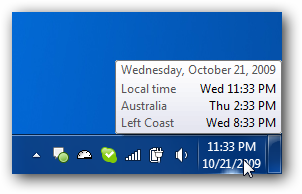
Windows 7 and Vista include an enhancement to the system clock that lets you display 2 additional clocks when you hover your mouse over the system clock.
Here’s an example of the London clock in Vista:
How To Enable Additional Clocks in Windows 7 Or Vista
And here’s the hover clock in Windows 7:
How To Enable Additional Clocks in Windows 7 Or Vista
Adding these additional clocks is extremely easy. First right-click on the clock in the system tray, and choose Adjust Date/Time: 
How To Enable Additional Clocks in Windows 7 Or Vista
Adding these additional clocks is extremely easy. First right-click on the clock in the system tray, and choose Adjust Date/Time: 
How To Enable Additional Clocks in Windows 7 Or Vista

You can enter a friendly display name. I entered “London”, but you could put something relevant to you, like the name of a family member living elsewhere. 

How To Enable or Disable UAC From the Windows 7 / Vista Command Line

If you’ve used Windows Vista for more than 3.7 minutes, you know what UAC (User Account Control) is.. it’s the obnoxious, nagging popup window that will be your life for the next 3-5 years unless you switch back to XP in frustration, or to a better OS like… OS X, Suse, Ubuntu, or even XP.
Update: This should also work on Windows 7.
Note: Disabling UAC will lead to a less secure system, so be warned.
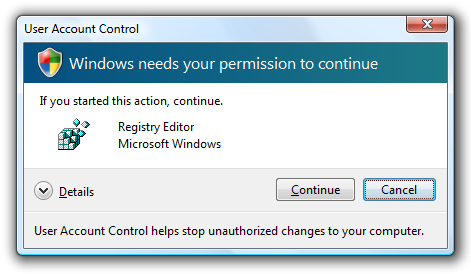
Windows needs your permission to annoy the crap out of you:
How To Enable or Disable UAC From the Windows 7 / Vista Command Line
There’s a quick way you can enable or disable this annoying window from the command line:
Disable UAC
C:\Windows\System32\cmd.exe /k %windir%\System32\reg.exe ADD HKLM\SOFTWARE\Microsoft\Windows\CurrentVersion\Policies\System /v EnableLUA /t REG_DWORD /d 0 /f
Enable UAC
C:\Windows\System32\cmd.exe /k %windir%\System32\reg.exe ADD HKLM\SOFTWARE\Microsoft\Windows\CurrentVersion\Policies\System /v EnableLUA /t REG_DWORD /d 1 /f
After you enable or disable UAC, you will have to reboot your computer for the changes to take effect.
You can also enable or disable this from the Control Panel if you choose.

How To Assign a Shortcut Key to the Snipping Tool in Windows Vista

Windows Vista includes a screen capture/screenshot tool that is actually pretty decent. You can take region captures or full screenshots and easily save them using this tool.
Note: The snipping tool doesn’t exist on every version of Vista. To turn it on, you’ll have to go to “Turn Windows features on or off” in Control Panel, and check the box for the Tablet PC utilities.
How To Assign a Shortcut Key to the Snipping Tool in Windows Vista
The only problem with this tool is that there’s no hotkey to bring up the window. But we’ll fix that…
Bring up the Start Menu, and then click on All Programs. Click the Accessories folder, and you’ll see the Snipping Tool.
How To Assign a Shortcut Key to the Snipping Tool in Windows Vista
Right click it and go to the Properties screen. You’ll see a Shortcut key text box:
How To Assign a Shortcut Key to the Snipping Tool in Windows Vista
The only annoying thing with this trick is that you can’t use the PrintScreen key… but no big deal. I assigned Ctrl + F12 because that’s something easy to remember that I don’t use for anything else.

How to Install IIS on Windows Vista Or in Windows 7

If you are a developer using ASP.NET, one of the first things you’ll want to install on Windows 7 or Vista is IIS (internet information server). Keep in mind that your version of Windows may not come with IIS. I’m using Windows 7 Ultimate edition.
First, go to Control Panel, and then click on Programs. You’ll see a link for “Turn Windows features on or off”
How to Install IIS on Windows Vista Or in Windows 7
If you expand the Internet Information Services tree node, you can see that there are a lot of options beneath it. You will probably want to explore these options, because even if you click on IIS, some of the necessary options for doing development aren’t checked.
How to Install IIS on Windows Vista Or in Windows 7
Once you’ve gone ahead and checked the items you want, and clicked OK, you’ll see this dialog for a while….
How to Install IIS on Windows Vista Or in Windows 7
Now when you navigate in your browser to localhost, you’ll see the new default page… slick!
How to Install IIS on Windows Vista Or in Windows 7

How To Enable Quick Copy and Paste with the Mouse on SecureCRT

SecureCRT uses the Ctrl+Ins and Shift+Ins keys for copy and paste instead of the normal windows defaults of Ctrl+C / V. The reason why this is done is because most unix or linux varieties use those keys as part of the shell.
I was searching for a quicker method of doing a copy and paste than having to use Ctrl+Ins key combination, when I stumbled on a much simpler way of doing it….  just have it automatically copy the text to the clipboard when I select it with my mouse. Pasting is just as simple: just click the middle mouse button.
Here’s how to enable this: Go to Options \ Global Options on the menu:
How To Enable Quick Copy and Paste with the Mouse on SecureCRT
In the Category listing, click on Terminal, and you should see this section of the configuration screen:
How To Enable Quick Copy and Paste with the Mouse on SecureCRT
Just check the first two checkboxes, and you are now in business.
For example, I wanted to copy this line into the clipboard, so I just selected it with my mouse as shown, and it was immediately on the clipboard, no questions asked.
How To Enable Quick Copy and Paste with the Mouse on SecureCRT

How To Use the Windows Key for the "Start" Menu in Ubuntu Linux

Ubuntu has a dropdown menu at the top of the screen to launch applications, which is very similar to the way Windows has the start menu at the bottom of the screen. If you are a windows user new to Ubuntu, you may prefer to have the windows key launch the applications menu. Thankfully this is an easy thing to do in Ubuntu.
Go to the System \ Preferences \ Keyboard Shortcuts menu item:
How To Use the Windows Key for the "Start" Menu in Ubuntu Linux
Scroll down till you see the “Show the panel menu” item. Click in the Shortcut column, and when it changes to “New accelerator…”, hit the Windows Key. Click the close button. You’re done!
Now when you hit the windows key, the application menu will pop up. If you hit the right arrow key, you can go to the Places or System menu as well.

How To Fix The System Tray Tooltips Not Displaying In Windows XP

There’s a bug in Windows XP where sometimes the system tray tooltips and popup notifications will show up behind the taskbar, or behind other windows. This is really annoying when you want to use a tooltip.'
How To Fix System Tray Tooltips Not Displaying In Windows XP
There’s not a known perfect solution to the problem. The way to make everything start working again is to do the following:
  • Right click the taskbar, choose properties, and uncheck the checkbox that says “Keep task bar on top of other windows”.
  • Click Apply
  • Check the checkbox again.
  • Click Apply again.
This will temporarily make the system work right again, but you will have to repeat these steps if it happens in the future.
Update: Neosmart has created a small application that will fix this problem. The only thing is that the application will need to be running all the time, but if you have this problem often enough, you won’t care.

How To Clear the Auto-Complete Email Address Cache in Outlook

How To Clear the Auto-Complete Email Address Cache in Outlook
Outlook 2003 has an automatic completion for any email address that you try to type into the To or CC fields. This feature does not pull from the contacts or address book, because you may have tried to email somebody that wasn’t in your contact list, and it will still add that to the auto complete list.
The problem comes in when you put in a bad address, and then every time you go to type in the email address, the incorrect one appears in the auto complete list.
To fix this problem, there are two ways around this. The easiest way is this:
  • Start typing in the address that shows up incorrectly.
  • Hit the Down arrow key to select the auto completed address.
  • Hit the Delete key to delete the auto complete address
The other way is by opening the profile folder and deleting the .nk2 file.
  • Open up windows explorer, and paste the following into the address bar:
    %APPDATA%\Microsoft\Outlook
  • Delete the Outlook.NK2 file that you find in this folder.

How To Make VLC Player Look like Windows Media Player 11

The VLC Media Player is an open source, cross-platform media client that supports the vast majority of media formats. One of the great features is that it supports skins that work across different platforms. This article will cover installing on both linux and windows.
You will first need to download the skin named WMP11 from the skins page. This skin looks a lot like Windows Media Player 11. It’s not exact, but it’s a pretty good skin.
How To Make VLC Player Look like Windows Media Player 11
To install on Ubuntu Linux:
Hit Alt+F2 to bring up the run dialog, and type in this:
vlc -I skins2
This will bring up the player in the right mode to let you install new skins. Right click on the title bar area and choose Select Skin \ Open Skin, and choose the skin file that you have downloaded.
How To Make VLC Player Look like Windows Media Player 11
That’s pretty much all there is to it.

To install on Windows:
Select the “VLC media player (skins)” option from the Start menu program group. This will start VLC in the right mode to select skins.
How To Make VLC Player Look like Windows Media Player 11
Right click on the title bar area, and choose Select skin \ Open skin and choose the skin file that you have downloaded.
How To Make VLC Player Look like Windows Media Player 11
Easy stuff. Now you have a great looking media player.
Update:Changed the article to point to the newer and better looking WMP11 skin instead of the Dalin one.

Find Out That If Our Computer Can Run Windows Vista Or Not

With the release of Windows Vista around the corner, I started wondering if my laptop will even run Vista. Thankfully Microsoft provides a utility to examine your system and let you know if you need to upgrade anything.
You can download the Windows Vista Upgrade Advisor here.
Download and start the install:
Find Out That If Our Computer Can Run Windows Vista Or Not
Once you launch the application, click the Start Scan button.
Find Out That If Our Computer Can Run Windows Vista Or Not
You’ll be sitting on this screen for at least a few minutes, while you get to read some of Microsoft’s marketing crap:
Find Out That If Our Computer Can Run Windows Vista Or Not
Well, it looks like my computer can run Vista:
Find Out That If Our Computer Can Run Windows Vista Or Not
It looks like my video card won’t support the Aero user interface… so even though I can run Vista, I won’t be able to use the cool new GUI:
Find Out That If Our Computer Can Run Windows Vista Or Not
Oh well. I plan to get a new desktop PC in the next few months anyway, and by that time maybe it’ll be bundled with Vista.

Toptech4u Explains: How To Fix Double Click Always Opens Search in Windows Explorer

If you mess around in the registry, or install some different software packages that add things to the right-click menu, you can end up with a problem where the default action on a folder is always “Search…”, even though you set it to something else.
There’s a quick and easy fix for this problem. Open up regedit.exe by using Start\Run and then browse down to this registry key:
HKEY_CLASSES_ROOT\Directory\shell
Double-click on the default value and set it to “none” without the quotes, as seen here:
Toptech4u Explains: How To Fix Double Click Always Opens Search in Windows Explorer
This will restore the normal behavior.
Update
If you are also experiencing this problem when you try to click on a drive, you can run this command from the run box or command prompt:
regsvr32 /i shell32.dll
This should restore the normal behavior.
If you are getting a message that says “Windows cannot find ‘PET32.exe’”, then at some point you had a virus, or still have a virus. First, make sure that you run a virus scanner to get rid of the virus. Then run the regsvr32 command above, which should fix the problem.

How To Add the Command Prompt To Windows Explorer Right Click Menu

A hidden functionality in Windows allows you to right click on a directory, and select “Command Prompt Here” from the menu.
Here’s the registry hack to get this working. Make sure you back up your registry just in case. I’ll show you the step-by-step method, but you can skip down to the bottom for the alternate reg file.
Step-By-Step Method:
Type regedit.exe into the Start\Run dialog, and then navigate to the following registry key:
HKEY_CLASSES_ROOT\Directory\shell
Once you are at that key, right click and choose the New Key option:
How To Add the Command Prompt To Windows Explorer Right Click Menu
Name the key “CommandPrompt” without the quotes and then double-click on the default value. Change the text to “Command Prompt Here” as seen here:
How To Add the Command Prompt To Windows Explorer Right Click Menu
Right click on the new Command key and select New key, as you did before. Name the new key Command as well, and then double-click the default value of that key. Set the text of that key to this:
cmd.exe /k cd %1
You can see what it should look like here:
How To Add the Command Prompt To Windows Explorer Right Click Menu
Now when you right click on the folder, you should see this dialog:
How To Add the Command Prompt To Windows Explorer Right Click Menu
That will open up a prompt like this:
How To Add the Command Prompt To Windows Explorer Right Click Menu
Alternate method:
You can create a text file named anything.reg, and insert this text into it:
Windows Registry Editor Version 5.00
[HKEY_CLASSES_ROOT\Directory\shell\CommandPrompt]
@=”Command Prompt:”
[HKEY_CLASSES_ROOT\Directory\shell\CommandPrompt\Command]
@=”cmd.exe /k cd %1″
Double click on that file, and the text will be entered into the registry, and you’ll have the same right click command prompt.